Joe’s upload day
Joe’s Used Sporting Goods is opening online: 465 products in five departments, six photos of each, straight off the camera. That is 2,790 photos and 6.6 GB, on a busy shared host. We put the photos in both ways, the WordPress way and with Flying Pigs Pro, on the same store, with the same files and the same image sizes. Every number below was measured on that site, or calculated directly from those measurements.
≈ 8 h 10 min
Projected: WordPress Media page with an optimizer plugin, for 2,790 photos
Measured: one department, 558 photos, in 1 h 38 min, times five. Then the photos still have to be put on the products.10 min 4 s
Flying Pigs Pro, all 2,790 photos, already on their products
WebP only, every size made, each photo attached to its product by SKU as it landed.The test rig: a shared cPanel host with three cores and PHP 8.3, running WordPress 7.1.2, WooCommerce 11.1.2, the Astra theme and FileBird for media folders, with the free plan of the EWWW Image Optimizer plugin doing the WordPress-side optimizing; Cloudflare's free plan in front of the site; a desktop browser with four image workers on a 10-core Mac; a 100 Mb/s connection, the speed of Joe's fiber, with uploads running at about 1.5 MB/s to a host 60 ms away; camera JPEGs averaging 2.4 MB. Your photos, host and line will give different minutes. The shape of the comparison is what holds.
The store
Joe sells used gear: gloves, bats, clubs, skates, pads. Every item is one of a kind, so every item gets its own photos: one for the shop page and five more for the gallery, because a buyer of used gear wants to see the wear. The departments are Baseball, Football, Golf, Hockey and Equipment, 93 products in each.
The products came first. Joe’s product list is a spreadsheet with a SKU, a name, a price, a category and a condition on every row, and no image column at all. WooCommerce’s own importer took it in a minute and a half: 465 products, all showing the grey placeholder. What is left is the part that usually eats the day: 2,790 photos. Joe had done his homework: he had read WooCommerce's guide to bulk product images, so every photo was already named after its product's SKU.
Two ways to get the photos onto the products
The WordPress way
- Upload the photos through the Media page. In our test it sent one camera file at a time, and the server cut every size and ran the optimizer on each before it took the next.
- The photos are now in the library and on no product. Write an image list: a spreadsheet row per product naming its six files, 2,790 file names in all.
- Run the importer a second time with “Update existing products” checked, so it finds each named file in the library.
- Read the import log, fix every row with a wrong or missing name, and run it again.
With Flying Pigs Pro
- Name each photo after its product’s SKU:
Golf-product47.jpgfor the product image, then-1to-5for the gallery. - Check “Attach to WooCommerce products by SKU”, pick the department’s media folder, drop the department’s folder of photos, press Start.
- Done. Each photo is written as WebP in the browser, sizes and all, and joins its product the moment it lands: the first as the product image, the rest in the gallery, in order.
Five departments, five runs
| Run | Photos | Products | Time | Photos a second |
|---|---|---|---|---|
| Baseball | 558 | 93 | 2 min 0 s | 4.63 |
| Football | 558 | 93 | 2 min 0 s | 4.64 |
| Golf | 558 | 93 | 2 min 1 s | 4.59 |
| Hockey | 558 | 93 | 2 min 3 s | 4.54 |
| Equipment | 558 | 93 | 2 min 0 s | 4.67 |
| The whole store | 2,790 | 465 | 10 min 4 s | 4.62 |
That is about a second and a third for a finished product: six photos converted, uploaded, filed in the department’s folder and sitting on the product page in gallery order. The five runs came in within three seconds of each other. Add a minute or two for the product import and Joe’s upload day is about twelve minutes.

What landed
We did not take the summary’s word for it. After the fifth run we read the store’s database and its uploads directory.
| Checked on the server | Result |
|---|---|
| Products with a product image | 465 of 465 |
| Gallery photos | 2,325, five a product |
| Photos with no matching product | 0 |
| Camera files in | 6.6 GB |
| On the server, every size included | 1.1 GB, 83% smaller |
| Files on the server | 16,740, every one a WebP, no JPEG |
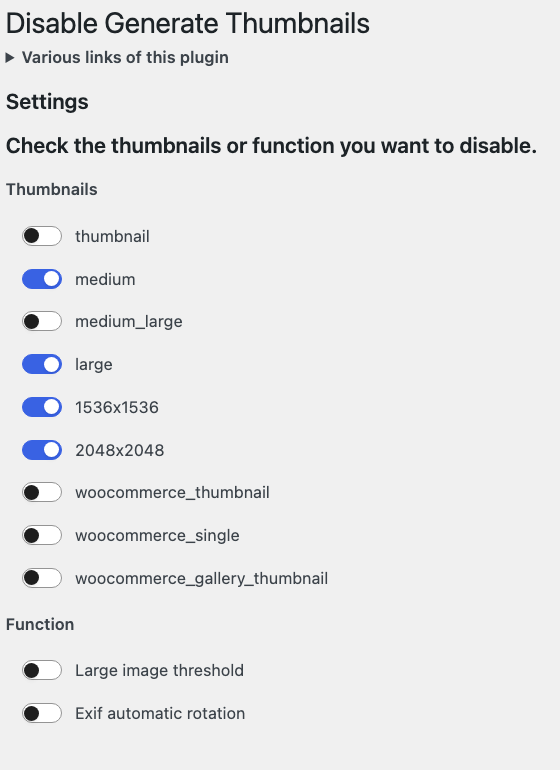
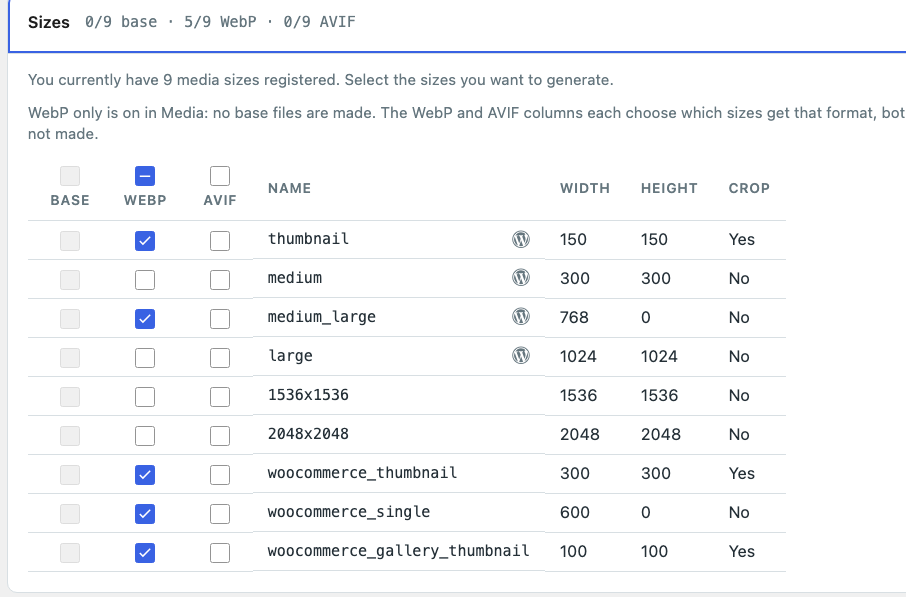
The five sizes are the ones a WooCommerce store shows: WordPress’s thumbnail and medium-large, and WooCommerce’s shop, product and gallery-strip sizes. The four it never asks for, medium, large, 1536 and 2048, were switched off. The switch is a site-wide WordPress setting, so the Media page and Flying Pigs made exactly the same set: apples to apples.
The WordPress way, measured
Then we cleared the photos and did it the way WordPress offers out of the box: the Media page, with a popular optimizer plugin (EWWW Image Optimizer, free plan, using its own command-line tools and optimizing each photo as it arrives) doing the compression and the WebP copies. Same store, same five sizes, same connection. Baseball alone took 1 hour 38 minutes: 97 minutes 53 seconds of uploading, and the optimizer done 11 seconds after the last photo landed. The five departments hold the same number of photos of the same kind, so the store projects to about 8 hours 10 minutes, some 49 times the Flying Pigs run.
Nothing went wrong in that run: all 558 photos landed, none dropped. This is where 10.5 seconds a photo went:
| Per photo | WordPress and optimizer | Flying Pigs Pro |
|---|---|---|
| Sent to the server | 2.4 MB, the camera file | 0.39 MB, the photo and its sizes, already WebP |
| Getting it there | under 2 s, at about 1.5 MB/s | 0.22 s, all of it |
| Server work: sizes, optimizer, WebP copies | the rest, about 8.5 s | |
| Where the image work happens | on the server, one photo at a time | in the browser, four at a time |
| Wall-clock average per photo | 10.5 s | 0.22 s |
On this host the connection is not the problem. A camera file got there in under two seconds. The rest is the server: WordPress cutting five sizes from a full camera file, then the optimizer squeezing each one and making its WebP copy, one photo at a time. The host’s own graph shows it:
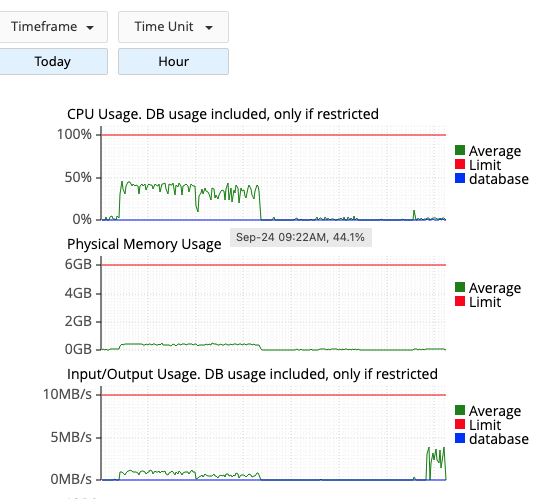
Most of the account sat idle the whole time, because in our test the Media page processed the camera files one at a time. A faster processor would shorten the run; a bigger plan with more cores would not. Flying Pigs moves the image work to the shop’s own computer, so the server only has to store what arrives.
The image list
After those hours the photos are in the library and the products are still grey. WordPress and WooCommerce never match a file name to a product on their own. The importer will attach images, but only ones named in the spreadsheet, so someone has to write the list: six file names on each of 465 rows.
We wrote ours with a script and ran it against the store with only Baseball uploaded, to see what a wrong name costs:

To be fair to the importer, the import itself is quick: seconds for a department. The cost is the list, and the evening spent reading the log for the rows that failed. With Flying Pigs there is no list, because the file name is the SKU.
Second act: the grand opening sale
A month on, Joe wants “Grand Opening Sale, 20% off” across every product photo for a week, and off again afterwards. A watermark is burned into the pixels, so with a server-side watermark plugin taking it off means finding clean copies. Joe’s clean copies never left his computer.
| Run | Photos | Time | Products touched |
|---|---|---|---|
| Sale mark on: Overwrite and Watermark checked, same folders dropped | 2,790 | 17 min 34 s | none |
| Sale over: Overwrite checked, Watermark off, same folders dropped | 2,790 | 9 min 56 s | none |
The mark is typed in the watermark maker, no image editor needed. Overwrite replaces each file under the same URL and the same attachment ID, so every product image and gallery stayed where it was; WooCommerce was never told anything changed. After each run the library still held 2,790 photos and 1.1 GB, with no duplicate copies. Overwriting costs nothing: taking the mark off took eight seconds less than putting the photos in the first time. The watermark adds about a second a photo.

Three things we learned doing it, so you don’t have to:
- Choose no media folder for an overwrite run unless you mean to move the photos. The folder dropdown applies to every run, and ours was still set to the last department.
- Put a sale mark in the center, or turn off square cropping. The mark is drawn on the full photo and the sizes are cut from it. WooCommerce’s shop thumbnails are cropped square from the middle, which cuts a bottom banner off a portrait photo.
- Browsers keep what they have seen. The addresses do not change, so a visitor who loaded a photo yesterday may see the old one until their cache lets go. New visitors see the new files at once.
Why Pro, feature by feature
- Attach to WooCommerce products by SKU. The whole second half of the WordPress way, gone. A variation’s SKU sets the variation’s image.
- WebP only. One WebP per size and no JPEG beside it: 16,740 files for the store, where the optimizer route left 6,088 for a single department.
- Turbo boost. Up to six upload lanes. On this host one lane kept up with the browser, so it seldom opened more; on a host that holds each connection to a modest speed, as many cheap shared plans do, the extra lanes are the difference.
- Resize before upload. Fit within 2560 by 2560 before a byte leaves the browser. The optimizer ends up at the same size, after the full camera file has made the trip.
- Overwrite in place, and the watermark maker. The grand opening sale, both ways, in under half an hour.
Everything else in these runs is in the free plugin too: browser-side optimizing, choosing sizes, WebP and AVIF companions, media folders, no file size limit, and runs that survive a dropped connection.
Where to start
Try the free Flying Pigs Uploader from WordPress.org first: it does the browser processing, the sizes and the folders, and its run summary shows how much of the run was spent uploading, which tells you what your host and line can do. Flying Pigs Pro is its own plugin, $12 a year for one site, sold at flying-pigs.wpspeedmeup.com. Install it, enter your license key, import your products, and drop a department. For a store starting from raw camera folders and no SKUs yet, our first case study covers the upload, the disk and the dates.