Flying Pigs Uploader · free on WordPress.org
Which of the many WordPress image optimizers should you use for new images?
None.
Let the pigs do the work before your images ever land on your server.
Flying Pigs resizes, converts and optimizes every image in your browser, before the upload starts. Your server just writes the files. From the day you install it, nothing arrives that still needs work.

Why make your server do it?
Your server. Not an image factory.
Every photo you upload the usual way is a job for PHP: resize it, cut the thumbnails, write the WebP, while the same box is supposed to be serving your visitors. Flying Pigs moves that whole job into the browser you already have open.
Photos to products
WooCommerce Product Images by SKU
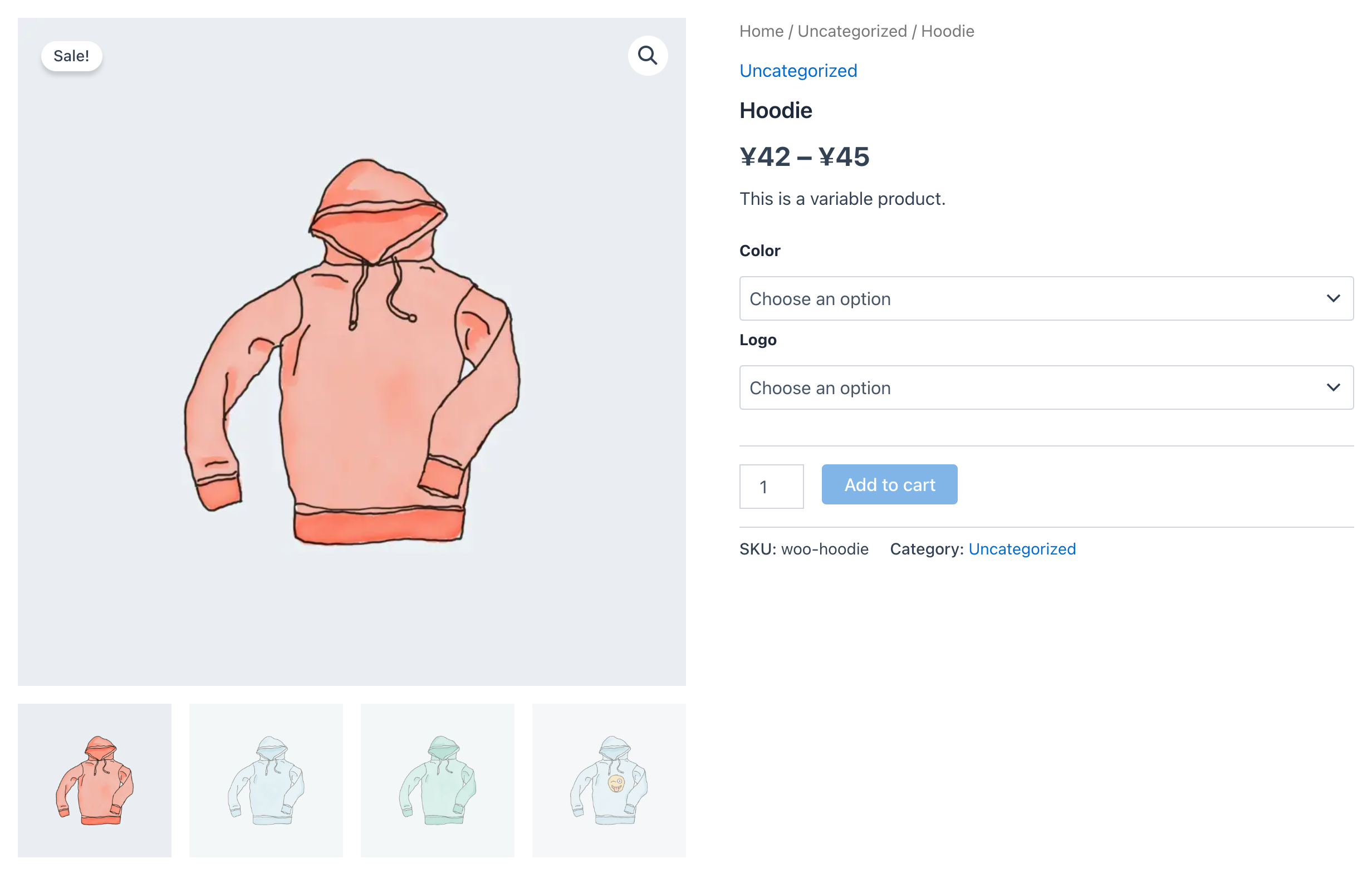
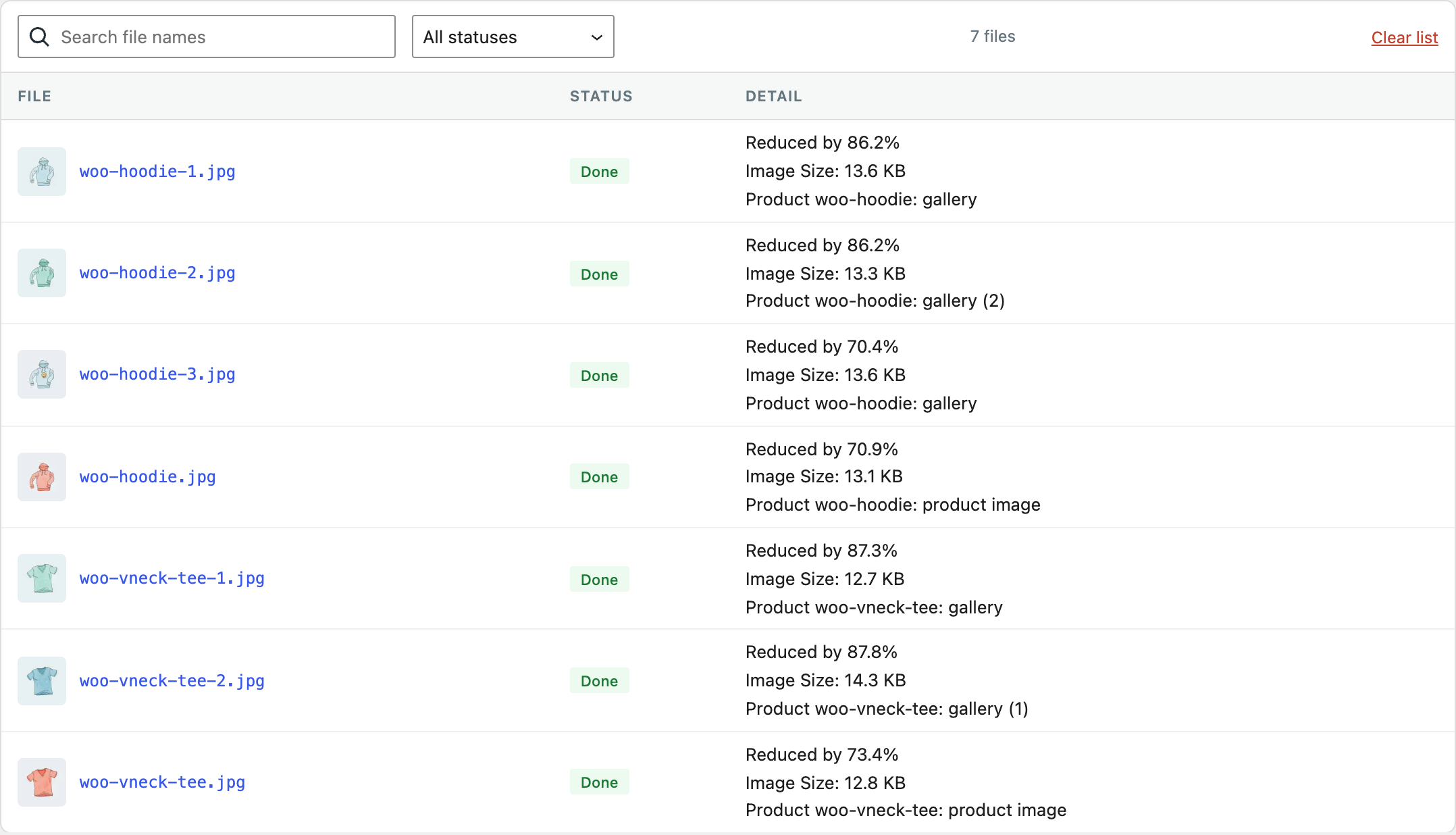
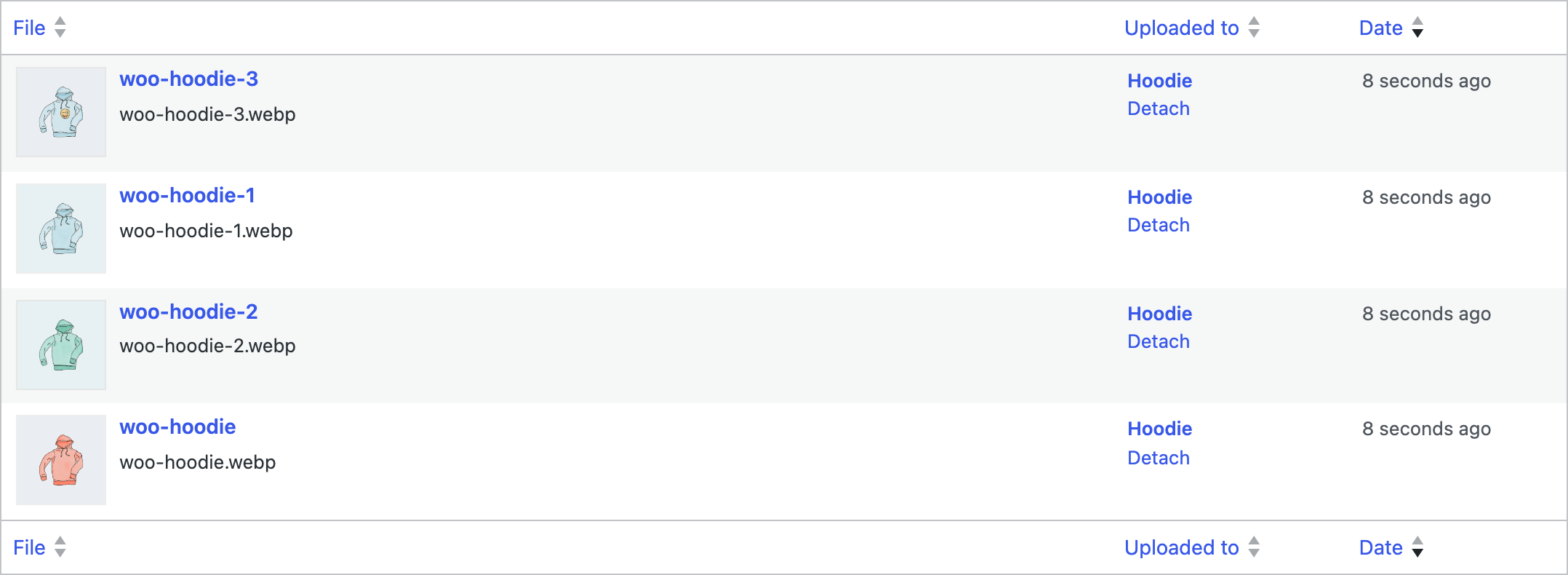
Flying Pigs Pro matches photos to products by their SKU, the unique identifier WooCommerce gives every product: each photo is named after its product's SKU, with a number for its place in the gallery, as in TSHIRT-001.0.jpg, TSHIRT-001.1.jpg. Import your products from a CSV with no image data at all, only a SKU on each, then drop the photos on the pig: every photo attaches to its product as it lands, .0 as the product image, the rest into the gallery in order. The dash style, TSHIRT-001-1.jpg, works too. No image columns to fill, no picking pictures product by product, and no image work left for the server. Shown here with WooCommerce's own sample products, imported without images, and WebP only on: the Hoodie's four views went up as .webp and the store serves them.
WooCommerce case study
Built for speed. Proven on a shared host.
Not a lab. A busy shared host, a 100 Mb/s line and a new WooCommerce store: 465 products in five departments, 2,790 photos straight off the camera.
The WordPress figure is the Media page with an optimizer plugin given its best chance, its own fast tools optimizing each photo as it arrived, and the same five image sizes: one department of 558 photos took 1 h 38 min against 2 min 0 s, and the store is five such departments. Your photos, host and line will give different minutes. The shape of the comparison is what holds.
Speed and batches
Speed
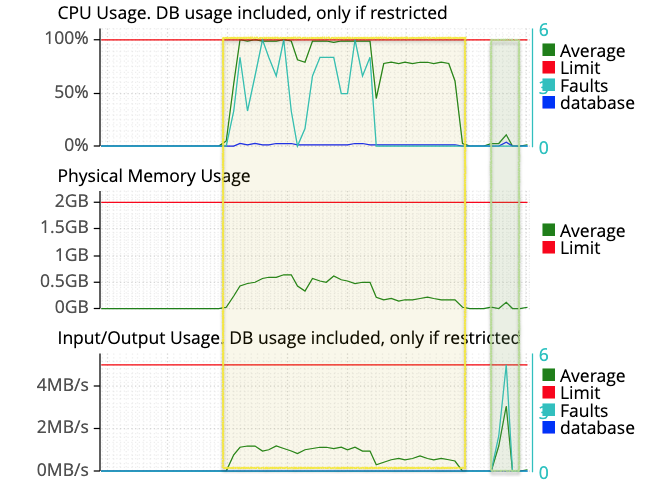
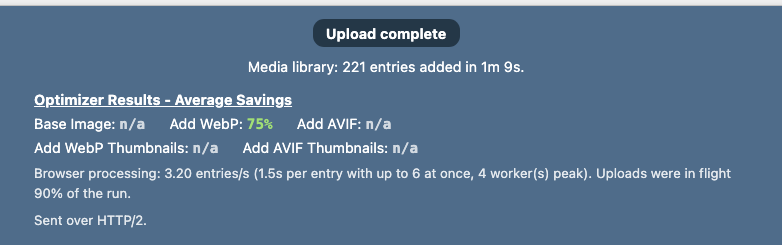
221 photos. 1:09. 75% smaller.
Flying Pigs Pro with every setting at its default, on a stock WordPress 7.1.1 with no other plugins, on a budget shared plan (StableHost Unlimited Starter). Every size was made in the browser as WebP and the server just wrote the files. In the host's own graph the pig is the narrow green band: one short burst of disk writes, the CPU barely moving. The wide yellow band is the same 221 photos through the WordPress Media page with an optimizer plugin given its best chance: automatic optimization on during the upload, then its bulk tool to finish. The spiky part is the upload; the flat plateau after it is the optimizer alone, still working through the WebPs with the CPU at the account limit long after the last photo arrived. 31 minutes in all, about 27 times as long.
Batches
One drop. One job.
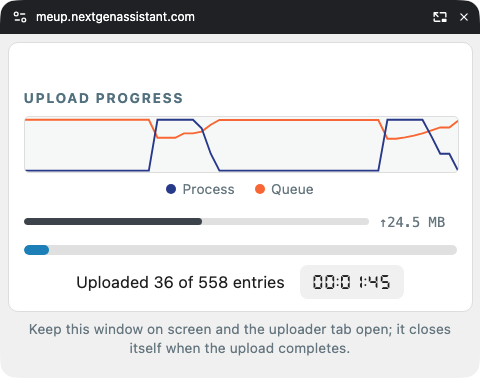
Hundreds of photos as a single run, sent in efficient batches. A failed request is sent again, and an expired login pauses the run until you sign in and press Resume. If nothing gets through for six minutes, the run stops and tells you what landed.
The pop-out. Progress opens in a small window that stays on top of your other apps. While it is on screen the browser keeps the run at full speed, so carry on working in other tabs. It closes itself when the upload ends. Chrome, Edge, Brave and Firefox.
The browser does the work
Resized. Converted. Ready before upload.
Everything the WordPress uploader does, done in your browser instead of on your server, plus the things it never could.
Sizes
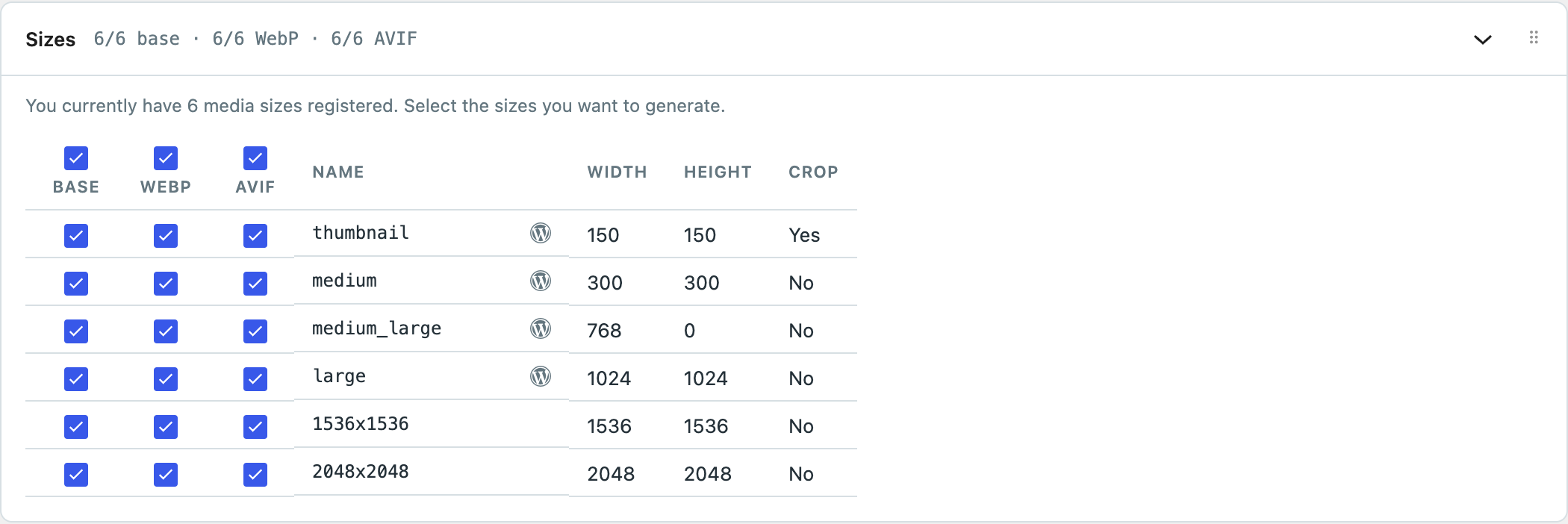
Every size, made here.
Every registered size is cut in the browser. You choose which sizes are made and which get a WebP or AVIF companion.
Formats
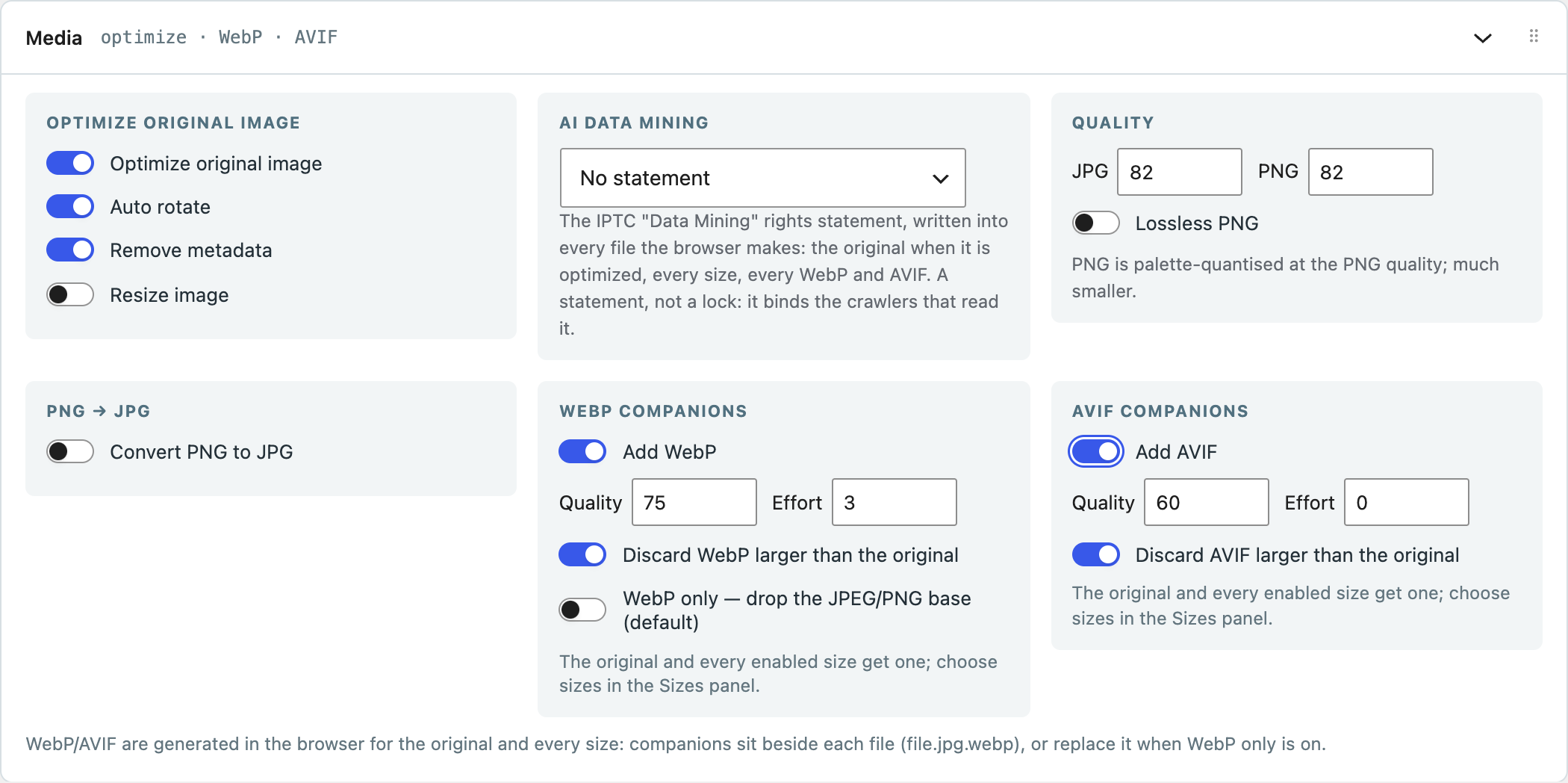
Leave the old formats behind.
Free keeps the JPEG and adds a WebP beside it. Pro stores only the WebP. Fewer files, fewer inodes, nothing your visitors will miss.
Your host
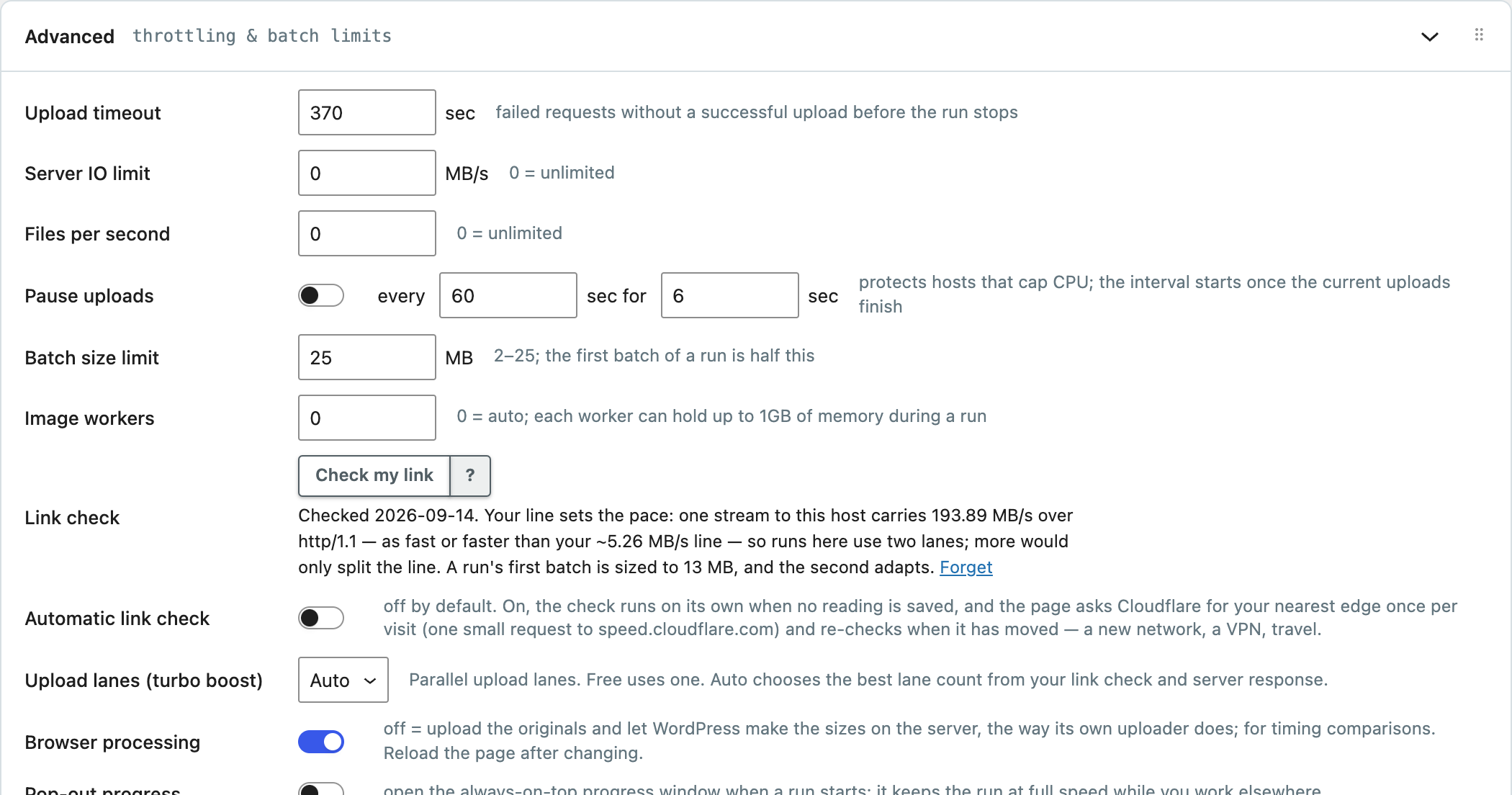
These pigs have brakes.
Advanced settings to throttle your uploads to fly under your service provider’s resource limits.
Free and Pro
Free flies. Pro has afterburners.

Free is the whole uploader, not a taster. Pro adds the power tools a store, a studio or an agency reaches for.
Free
For any WordPress site.
Install free- Optimize and convert in the browser
- Every registered size, cut before upload, and your pick of which
- WebP and AVIF companions, your pick per size
- No file size limit: big files go up in chunks, so only your free disk space caps them, not the server's upload settings
- Retry and resume when the connection drops
- Rate, batch size and pauses for your host
- Works with FileBird, CatFolders and the other folder plugins
- Pop-out progress while you keep working
- Rights statement against AI data mining, written into every image
Makes no outside call. Your files go from your browser to your own site and nowhere else.
Pro
Everything in Free, and then some.
Get Pro- WebP only: drop the JPEG, store just the WebP
- Turbo boost, up to six upload lanes
- Resize before upload: fit every original within the size you choose, 2560 × 2560 by default
- Link check: times your line and your server's, then sets the batch size and the upload lanes to match
- Watermark, bring your own or build one in the maker (how to use it)
- Bulk overwrite in place, builder and gallery links repaired
- Photos onto WooCommerce products by SKU, as they land, named the way WooCommerce.com's bulk image guide describes
- Destination folder and library date, chosen separately
- Updates through the WordPress Plugins page, installed with one click while the license is active
Please use Free first. It runs the same engine on the same page, so it confirms that Flying Pigs works with your site and your host before you buy. Because Free lets you test compatibility, completed Pro purchases are non-refundable and non-transferable.
Pro talks to our license and update servers: when you activate, once a day after that, and when you update. It sends the license key, the buyer email and the site address, never a file. The link check to Cloudflare runs only when you press its button.
Get Pro
Pick your license.
One price for a year, by the number of sites. Pay with PayPal or a card, and the license key arrives by email in a minute or two, with the link to download Pro.
Single site
$12
1 WordPress site, one year from activation.
3 sites
$32
Up to 3 WordPress sites. Each site runs one year from its own activation.
10 sites
$100
Up to 10 WordPress sites. Each site runs one year from its own activation.
Please use Free first: it confirms Flying Pigs works with your site and host, which is why completed Pro purchases are non-refundable and non-transferable. Without an active license Pro does not upload. Already bought? Download Pro with your key.
Ready when you are
Install free. Fly today.
Drop a folder on the Flying Pigs page under Media, press Start, and watch the server do nothing.
Questions
Straight answers.

Does it touch the images already in my library?
No. Flying Pigs works on what you upload through it, from the day you install it. Your existing library is untouched, and an optimizer plugin can still tidy that up once.
Do I need to set anything up before the first upload?
No. The defaults match what WordPress does on its own, and the WebP and AVIF settings are the ones the optimizer plugins use. Drop the files, look over the list, press Start. The settings are there when you want them.
Do my photos go anywhere but my own site?
No. They go from your browser to your WordPress site. Free makes no outside call at all. Pro checks its license and its updates with our servers, sending the license key, the buyer email and the site address, never a file. Its link check to Cloudflare runs only when you press the button.
Does it change the files on my computer?
No. The browser reads each file and makes the resized copies in memory. Nothing is written to your disk, and your originals stay exactly as they were.
Will my theme, gallery and folder plugin still work?
Yes. Every image lands as a normal attachment with its sizes, so themes, galleries and builders use it as usual. FileBird, CatFolders, Folders and Wicked Folders keep their trees. The pigs' uploads are hidden from any optimizer plugin you still run, so nothing is processed twice.
Will overwrite work with my gallery, slider or page builder?
Usually. Pro’s overwrite replaces the file in place, keeps the URL, and repairs the references builders and galleries hold. A plugin that copies images into its own storage or keeps its own crops may need a cache clear or a reselect. Try one image before a big batch. The help desk's overwrite compatibility note lists the builders, galleries and sliders it is verified with, and the known limitations.
Can it handle images I replace every week?
Yes, with Pro. Weekly specials, menus, event boards, guest lists: keep the same file names, switch overwrite on, upload the new graphics. The slider or page keeps showing the same Media Library image, now with the new picture in it.
Can old photos keep their dates?
Yes, with Pro. The File date picker files each upload under the month of the file’s own date, or a date you choose for the batch, so a school’s ten years of photos land in ten years of folders instead of one afternoon. Free files everything under this month.
Does it work for WooCommerce product images?
Yes. Product and gallery images are Media Library images, so they upload, resize and convert the same way, and Pro’s overwrite handles a supplier’s corrected photos or a seasonal refresh. The case study is a store.
Can it put the photos on the products?
Yes. The simplest way: import your products from a CSV with no image data, only a SKU on each product, then name each photo after its SKU and upload with Pro's "Attach to WooCommerce products by SKU" switched on. 10023.jpg becomes the product image of SKU 10023, and 10023-1.jpg, 10023-2.jpg fill its gallery in that order; a variation's SKU sets the variation's image. The products have to exist before the photos land, since the SKU is looked up as each one arrives. The other order works too: upload the photos first under any names, then list those file names in the CSV's Images column and WooCommerce's importer attaches them from the library. With WebP only on, the photos land as .webp, so a CSV names them .webp.
My product photos are named by SKU. Does Flying Pigs fit?
Yes, with nothing to rename. Every WooCommerce product can carry a SKU, the unique identifier WooCommerce uses to find and track it. Name each photo after its product's SKU, with a number for its place in the gallery (TSHIRT-001.0.jpg, TSHIRT-001.1.jpg and so on, or TSHIRT-001-1.jpg), and Flying Pigs Pro does the rest. With "Attach to WooCommerce products by SKU" on, each photo is resized and converted in your browser and joins its product the moment it lands: .0 as the product image, the rest in the gallery in order. There is no second step and no image work left for the server.
I would rather let my server make the sizes. Still useful?
Yes. Switch Browser processing off in the Advanced panel and the originals upload as they are, for WordPress and your optimizer to process as usual. You keep the batches, the chunking, the retries and the throttles, and with Pro the overwrite.
Will it overload my server?
Not if you tell it not to. The Advanced panel has a server IO limit, a files-per-second limit, a batch size limit and timed pauses. Shared plans with strict resource rules are what they are for. Check your host’s terms before you set them high.
Which browsers?
Chrome, Edge, Brave or Firefox, on a Mac, a PC or a Chromebook. For runs in the thousands, Chrome gives the engine the most room. Safari works, but it gives the engine so little memory that it is only fit for very small uploads; use another browser for a real batch. On an iPad or iPhone the page still uploads, with WordPress making the sizes on the server as usual.
What does the plugin need?
WordPress 6.5 or later and PHP 7.4 or later. No web server configuration: it runs on Apache, LiteSpeed and nginx as installed.
Who is Flying Pigs for?
Anyone who puts a lot of images into WordPress: photographers building a portfolio or sharing a session for review, stores with a catalog to load or refresh, schools and clubs with years of photos, agencies setting up client sites on shared hosting. If the Media page has ever made you wait, it is for you.
Can I try Pro before I buy?
Try Free first, please. It is the same engine on the same page, so if Free runs on your site and your host, Pro will too. Because Free lets you test compatibility, completed Pro purchases are non-refundable and non-transferable.
Is Free really the whole uploader?
Yes. Browser processing, every size, the modern formats, batches, retry and resume, throttling and folder support are all Free. Pro is the power tools listed above.
What happens when a Pro license runs out?
Pro stops. Without an active license Pro does not upload at all, and updates and support stop with it. Activate a license in the License panel, or use the free plugin from WordPress.org, which needs no license and has no limit.
Something is wrong. How do I get help?
Open a ticket at the Flying Pigs help desk. Pro users can also open one from the plugin’s License panel. Attach the browser log from the Advanced panel if you can. It says what happened.